

Want to get your WordPress site buzzing with content? Adding posts and pages is absolutely fundamental. It’s how you share your ideas, build your brand, and connect with your audience. This guide will walk you through the process, step by step. It’s easier than you might think! Let’s see how you can add posts and pages in WordPress in 2026.
Basically, adding posts and pages is the backbone of any WordPress site. Posts are for timely content like blog entries, news updates, or opinion pieces, while pages are for static content such as an “About Us” section, a contact form, or a privacy policy. Getting this right is vital for a successful website. I’ve been using WordPress for over 10 years, and I’ve seen it all – from the early days of simple text editors to the modern block-based system. Honestly, it’s not rocket science, but understanding the nuances can significantly improve your website’s impact. Think of posts as your daily conversations and pages as your permanent introduction.
Here’s the deal: I’m going to give you a list of actionable steps you can take right now. No fluff, just the stuff that works. We’ll cover everything from accessing the dashboard to optimizing your content for search engines. I’ll also share some of the common mistakes I’ve seen people make and how to avoid them. My goal is to empower you to create a website that not only looks great but also achieves your goals, whether it’s generating leads, selling products, or simply sharing your passion with the world.
1. Accessing the WordPress Dashboard
First things first, you need to log in to your WordPress dashboard. This is your control center! Usually, it’s yourdomain.com/wp-admin. Enter your username and password. Can’t remember it? There’s a “Lost your password?” link. I’ve definitely clicked that a few times. Don’t worry, we all do it. I even recommend using a password manager to avoid this problem in the future. It not only helps you remember your passwords but also generates strong, unique passwords for each of your accounts, significantly improving your online security.
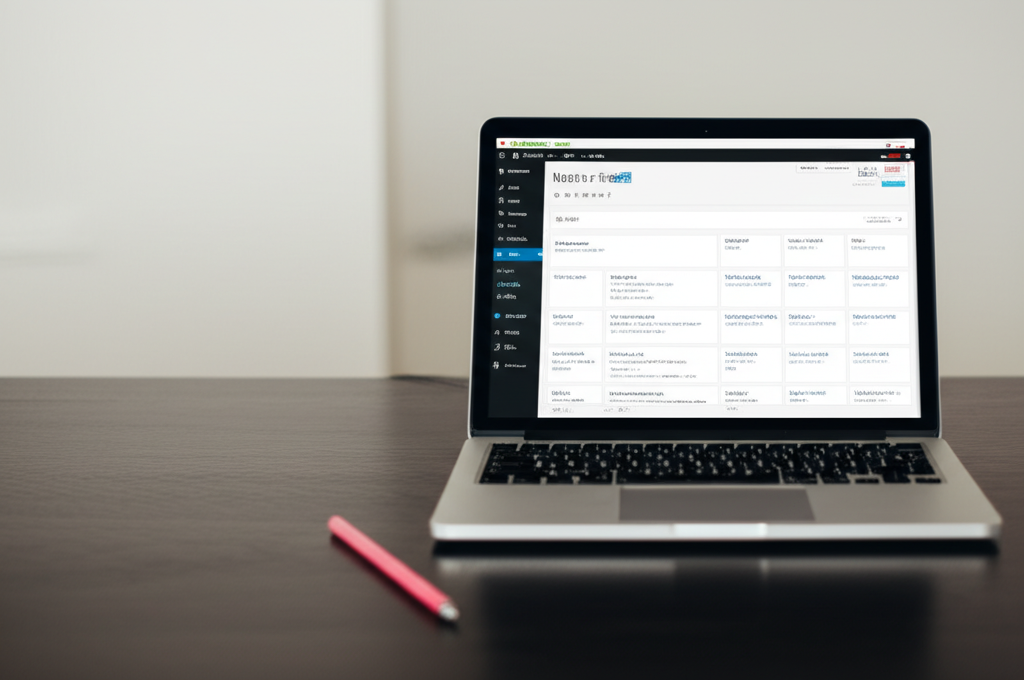
Once you’re logged in, you’ll see the dashboard. It might look a little intimidating at first, but don’t sweat it. We’ll break it down. Think of it as the cockpit of your website. On the left-hand side, you’ll find the main navigation menu, which gives you access to all the different sections of your website, including posts, pages, media, comments, and settings. The main area of the dashboard displays an overview of your website’s activity, such as recent posts, comments, and updates. You can customize the dashboard to show the information that’s most relevant to you. I usually keep an eye on the “At a Glance” widget, which gives me a quick overview of the number of posts, pages, and comments on my site.
2. Creating a New Post
Ready to write your first post? On the left-hand side of the dashboard, find the “Posts” menu. Hover over it, and you’ll see a submenu. Click on “Add New.” This will open the WordPress editor. Before you even start writing, take a moment to think about your target audience and the purpose of your post. What problem are you trying to solve? What information are you trying to share? Having a clear idea of your goals will help you stay focused and create content that resonates with your readers.
Now, give your post a title. This is super important for SEO, so make it catchy and relevant. Think of your title as the headline of a newspaper article. It should grab the reader’s attention and entice them to click through and read more. Use keywords that people are likely to search for when looking for information on your topic. Tools like Google Keyword Planner and Semrush can help you identify relevant keywords. Then, start writing your content in the main editor area. You can add text, images, videos, and all sorts of cool stuff. The WordPress editor is pretty intuitive, but there’s a bit of a learning curve. Don’t be afraid to experiment! Try out different block types, formatting options, and layout styles to see what works best for you. I personally love using the “Columns” block to create visually appealing layouts that break up the text and make it easier to read. Also, consider using a plugin like Yoast SEO to help you optimize your post for search engines. This plugin provides valuable feedback on your content, including suggestions for improving your title, meta description, and keyword usage.
According to a 2025 study by Content Marketing Institute, blog posts are key for lead generation [1]. So, make those posts count! Don’t just churn out content for the sake of it. Focus on creating high-quality, informative, and engaging posts that provide value to your readers. Share your personal experiences, offer practical tips, and answer common questions. The more helpful and informative your posts are, the more likely people are to share them with their friends and followers. Also, remember to promote your posts on social media and other channels to reach a wider audience. I’ve found that sharing excerpts and quotes from my posts on Twitter and LinkedIn is a great way to drive traffic back to my website.
3. Creating a New Page
Creating a new page is super similar to creating a post. In the dashboard, find the “Pages” menu and click on “Add New.” Just like with posts, you’ll be taken to the WordPress editor. Give your page a title and add your content. Pages are typically used for static content like an “About Us” page or a contact form. When creating a page, think about the overall structure of your website and how this page fits into that structure. Is it a main page that should be easily accessible from the navigation menu, or is it a subpage that should be linked to from another page? Consider using a page builder plugin like Elementor or Beaver Builder to create more complex and visually appealing page layouts. These plugins allow you to drag and drop different elements onto your page, giving you more control over the design.
I find that a well-crafted “About Us” page can really boost your credibility. It’s your chance to tell your story and connect with your audience on a personal level. Share your mission, your values, and your background. Let people know why you’re passionate about what you do and why they should trust you. Include photos of yourself and your team to make your page more personal and relatable. I’ve also found that adding testimonials from satisfied customers can significantly increase your credibility and build trust with potential clients. Don’t be afraid to showcase your achievements and highlight the unique value that you offer.
4. Using the WordPress Editor
The WordPress editor has evolved a lot over the years. It’s now based on a block system, which means you can add different types of content as individual blocks. There are blocks for paragraphs, images, headings, lists, and much more. To add a block, just click the “+” icon. It’s pretty straightforward. Explore the different block types available and experiment with their settings. You can customize the appearance of each block by changing its font size, color, background, and more. You can also rearrange the blocks by dragging and dropping them into different positions on the page. I’ve found that using a combination of different block types can create more visually appealing and engaging content. For example, I often use the “Cover” block to create a striking header image for my posts, and I use the “Quote” block to highlight important information.
Honestly, I wasn’t a huge fan of the block editor at first. But I’ve grown to appreciate its flexibility. It allows you to create visually appealing layouts without needing to code. One of the biggest advantages of the block editor is its ability to create reusable blocks. If you have a block that you use frequently, you can save it as a reusable block and then insert it into any post or page on your website. This can save you a lot of time and effort, especially if you’re creating a lot of similar content. I personally use reusable blocks for my call-to-action sections, my social media sharing buttons, and my author bio.
5. Formatting Your Content
Formatting is key to making your content readable and engaging. Use headings, subheadings, bullet points, and images to break up the text and make it easier to scan. Nobody wants to read a wall of text! I’ve seen so many websites with great content that’s ruined by poor formatting. Don’t let that be you. Think of your content as a visual presentation. Use headings and subheadings to create a clear hierarchy and guide the reader through your ideas. Use bullet points and lists to present information in a concise and easy-to-understand format. Use images and videos to illustrate your points and add visual interest. Pay attention to the font size, line height, and spacing of your text to ensure that it’s easy to read on all devices.
Here’s a quick tip: use short paragraphs. It makes your content more digestible, especially on mobile devices. Aim for paragraphs that are no more than three or four sentences long. This will make your content easier to scan and keep your readers engaged. Also, use white space strategically to create visual breaks and prevent your content from feeling overwhelming. I often use a line break after each paragraph to create more space and improve readability. Remember, the goal is to make your content as easy as possible to consume.
6. Adding Images and Media
Images and videos can really bring your content to life. To add an image, click the “+” icon and choose the “Image” block. You can then upload an image from your computer or select one from your media library. Make sure to add alt text to your images for SEO purposes. Alt text is a short description of the image that helps search engines understand what it’s about. When choosing images for your content, make sure they are relevant to your topic and visually appealing. Use high-quality images that are properly sized and optimized for the web. Avoid using images that are blurry, pixelated, or copyrighted. There are many free stock photo websites that offer a wide variety of high-quality images that you can use on your website, such as Unsplash, Pexels, and Pixabay. Also, consider creating your own custom graphics and illustrations to make your content more unique and memorable. Tools like Canva and Adobe Spark make it easy to create professional-looking graphics without any design experience.
I’ve been burned before by forgetting alt text. Big mistake. Don’t skip this step. Alt text not only helps search engines understand your images, but it also improves accessibility for users with visual impairments. When writing alt text, be descriptive and specific. Describe what the image is about and how it relates to the surrounding content. Avoid using generic alt text like “image” or “picture.” Instead, use keywords that people are likely to search for when looking for information on your topic. For example, if you have an image of a red apple, your alt text might be “red apple on a white background.”
7. Setting a Featured Image
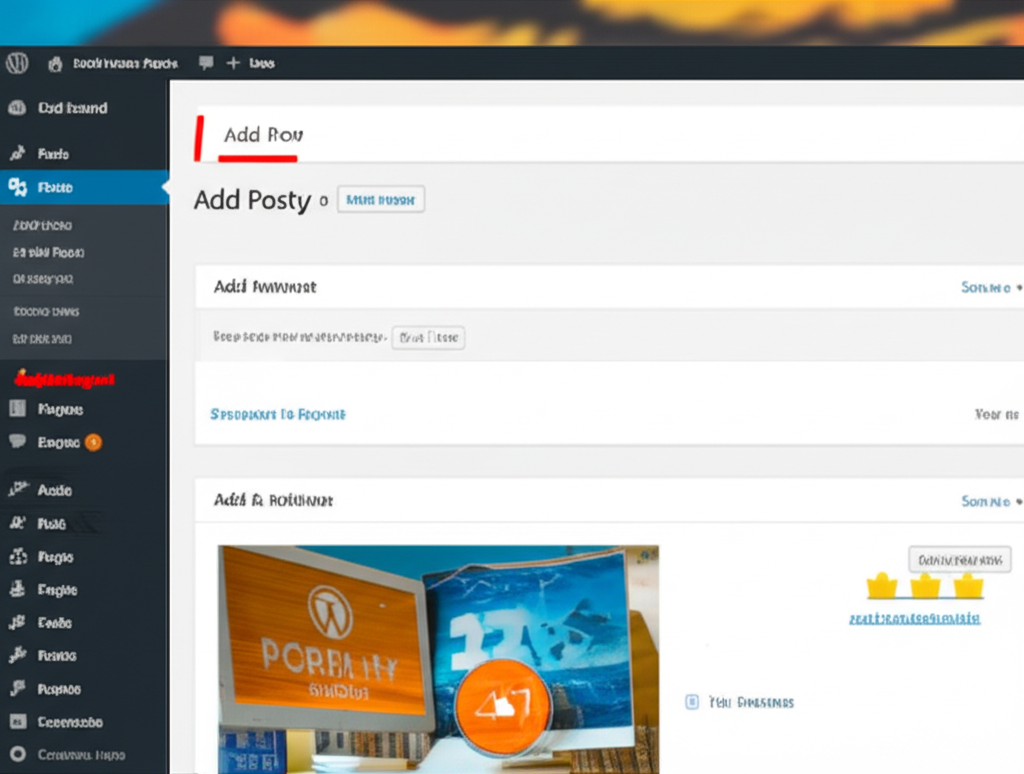
A featured image is the main image that represents your post or page. It’s what people will see when you share your content on social media. To set a featured image, look for the “Featured Image” section in the right-hand sidebar of the editor. Click on “Set featured image” and choose an image from your media library or upload a new one. When choosing a featured image, make sure it’s visually appealing and relevant to your content. Use a high-quality image that is properly sized and optimized for the web. Avoid using images that are blurry, pixelated, or copyrighted. The ideal size for a featured image will depend on your website’s theme, but a good rule of thumb is to use an image that is at least 1200 pixels wide. Also, consider using a consistent style for your featured images to create a cohesive brand identity.
This one’s important. I mean, a good featured image can make or break your post’s visibility. Choose wisely! Think of your featured image as the cover of a book. It should grab the reader’s attention and entice them to click through and read more. Use a visually striking image that is relevant to your topic and reflects your brand. Consider using a tool like Canva to create custom featured images that are specifically designed for your website. You can add text, logos, and other design elements to make your featured images more engaging and memorable. I’ve found that using a consistent style for my featured images has helped me to build a stronger brand identity and increase my website’s visibility.
8. Publishing Your Post or Page
Alright, you’ve written your content, formatted it beautifully, and added some stunning images. Now it’s time to publish! Click the “Publish” button in the top right corner of the editor. You can choose to publish your content immediately or schedule it for a later date. I usually schedule my posts to go live in the morning. Seems to work well. Experiment with different publishing times to see what works best for your audience. Use Google Analytics to track your website’s traffic and identify the times when your readers are most active. You can then schedule your posts to go live during those times to maximize your reach. Also, consider using a social media scheduling tool like Buffer or Hootsuite to automatically share your posts on social media when they are published.
Make sure to double-check everything before you hit that publish button. Typos and errors can make your website look unprofessional. Proofread your content carefully and use a grammar checker like Grammarly to catch any mistakes. Also, check all of your links to make sure they are working properly. Nothing is more frustrating than clicking on a broken link. I’ve also found it helpful to ask a friend or colleague to review my content before I publish it. A fresh pair of eyes can often catch errors that I’ve missed.
9. Understanding Categories and Tags
Categories and tags help you organize your content. Categories are broad topics, while tags are more specific keywords. For example, if you’re writing about web hosting, you might use the category “Web Hosting” and tags like “WordPress,” “VPS,” and “Dedicated Server.” This helps readers find what they’re looking for on your site. Use categories to group your posts into broad topics that are relevant to your website’s overall theme. Use tags to add more specific keywords that describe the content of each post. Avoid using too many categories or tags, as this can make your website feel cluttered and disorganized. A good rule of thumb is to use no more than five or six categories and ten or fifteen tags per post. Also, make sure to use consistent categories and tags across your website to create a clear and logical structure.
I honestly hate organizing stuff, but categories and tags are actually pretty useful. They can improve your site’s SEO and user experience. Categories and tags not only help your readers find what they’re looking for, but they also help search engines understand the structure and content of your website. This can improve your website’s ranking in search results and drive more traffic to your site. When choosing categories and tags, think about the keywords that people are likely to search for when looking for information on your topic. Use those keywords as your categories and tags to improve your website’s SEO.
10. Previewing Before Publishing
Before hitting that publish button, always preview your post or page. Click the “Preview” button to see how it will look on your website. This is your chance to catch any last-minute errors or formatting issues. It’s always better to be safe than sorry. Preview your content on different devices to make sure it looks good on desktops, tablets, and smartphones. Use the WordPress customizer to adjust the appearance of your website and make sure your content is properly aligned and formatted. Also, check all of your images and videos to make sure they are displaying correctly. Nothing is more frustrating than publishing a post or page only to discover that there are errors or formatting issues.
Take this with a grain of salt, but I think previewing is the most important step. Seriously. Previewing your content is your last chance to make sure everything is perfect before you share it with the world. Don’t skip this step! I’ve caught countless errors and formatting issues by simply taking a few minutes to preview my content before publishing it. It’s a small investment of time that can save you a lot of embarrassment and prevent your website from looking unprofessional.
FAQ: How to Add Posts and Pages in WordPress?
Got questions? Let’s tackle some common ones about how to add posts and pages in WordPress.
Can I add posts and pages using a mobile device?
Yes, you can! WordPress has a mobile app that allows you to add posts and pages from your smartphone or tablet. It’s pretty convenient if you’re on the go. The WordPress mobile app is available for both iOS and Android devices. You can use it to create, edit, and publish posts and pages, as well as manage your website’s comments and settings. The app is designed to be user-friendly and intuitive, making it easy to manage your website from anywhere in the world. I often use the WordPress mobile app to create quick blog posts and respond to comments when I’m traveling or away from my computer.
What’s the difference between a post and a page?
That’s a great question! Posts are typically used for blog content that is updated regularly, while pages are for static content like an “About Us” page or a contact form. Posts are also displayed in reverse chronological order, while pages are not. Think of posts as your daily updates and pages as your permanent information. Posts are designed to be timely and engaging, while pages are designed to be informative and evergreen. Posts are typically organized by date and category, while pages are typically organized by hierarchy and menu structure. Understanding the difference between posts and pages is important for creating a well-organized and user-friendly website.
Key Differences Between Adding Posts and Pages
Alright, let’s recap the key differences between posts and pages.
- Adding posts and pages in WordPress is important for sharing content and building your online presence.
- Use the WordPress editor to create and format your content, adding images and media to enhance engagement.
- Categories and tags help organize your content, improving SEO and user experience.
- Always preview your content before publishing to ensure everything looks perfect.
So, there you have it! A step-by-step guide to adding posts and pages in WordPress. It’s not as daunting as it seems, right? With a little practice, you’ll be creating amazing content in no time. Now get out there and start blogging!
According to research from HubSpot, companies that blog get 55% more website visitors. That’s a big difference! Plus, a survey by Neil Patel found that businesses with blogs generate 126% more leads than those without. Worth it. Blogging is not just about sharing your thoughts and ideas; it’s also about building relationships with your audience and establishing yourself as an authority in your industry. The more valuable and informative your content is, the more likely people are to trust you and do business with you. I’ve seen firsthand how blogging can transform a business from an unknown entity into a recognized leader in its field.
As someone who’s been blogging for years, I can tell you it’s worth the effort. It’s a great way to build your brand, connect with your audience, and drive traffic to your website. I’ve seen it work firsthand. It’s super rewarding to see your content helping others. The key to successful blogging is consistency. Don’t just publish a few posts and then give up. Commit to publishing new content on a regular basis, whether it’s once a week, once a month, or even once a day. The more consistent you are, the more likely you are to attract and retain a loyal audience. I’ve found that creating a content calendar and scheduling my posts in advance has helped me to stay on track and maintain a consistent publishing schedule.
Did you know that websites with blogs tend to have 434% more indexed pages? This means that having a blog can significantly improve your website’s visibility in search results and drive more organic traffic to your site. The more pages your website has, the more opportunities you have to rank for different keywords and attract potential customers. So, if you’re serious about growing your online presence, then you need to start blogging today!