
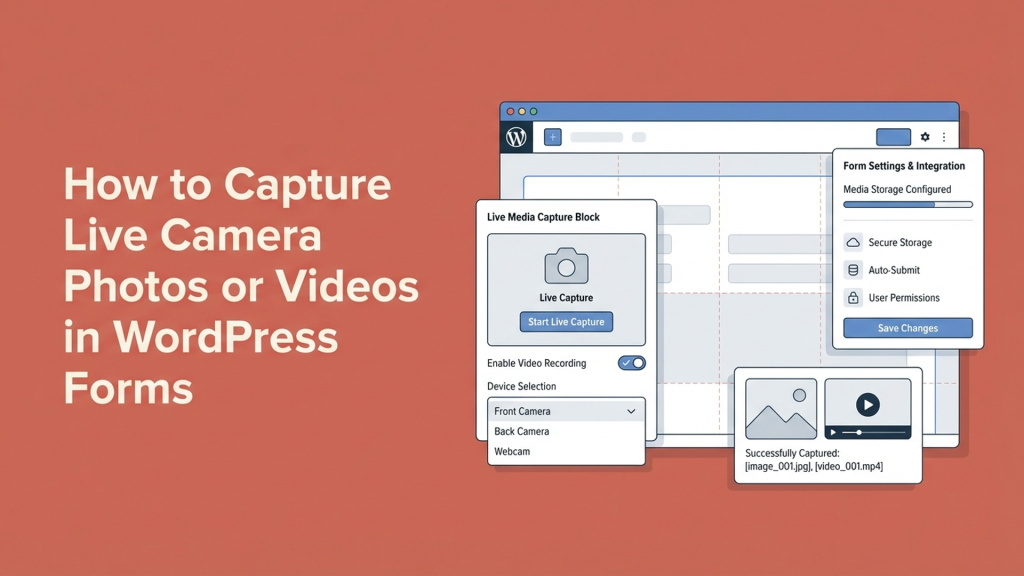
Direct answer: You can let visitors take a live photo or record a short video inside a WordPress form by using a form plugin that supports camera capture (like WPForms Pro). Instead of asking people to email files or hunt through their phone gallery, they tap a camera button, approve browser permissions, and submit the media with the rest of the form. It’s one of the easiest ways I’ve found to reduce abandoned submissions and keep everything organized in WordPress.
I used to do things the hard way. If I needed a profile photo for a membership site, a headshot for a team page, or a quick image for ID verification, I’d ask people to email it over. And almost every time, something went wrong: the attachment was missing, the image was huge, the file format was odd, or the “photo” was actually a blurry screenshot. It wasn’t anyone’s fault—it was just a clunky process.
Once I started letting users capture photos and videos directly in my WordPress forms, that entire back-and-forth basically disappeared. In this guide, I’ll walk you through how to set it up, how to configure it properly, and what to watch out for so it works smoothly on mobile and desktop.
Why live camera capture in WordPress forms is worth it
When you ask someone to upload a photo the traditional way, you’re asking them to do a mini scavenger hunt:
- Leave your form
- Open the camera app
- Take the photo (or record a clip)
- Return to the browser
- Find the file in Photos/Gallery
- Upload it and hope it doesn’t fail
That’s a lot of steps for something that should be simple. And every extra step increases the odds they’ll quit. With a live capture field, the camera opens right inside the form, and they’re done in seconds.
From my experience, this one feature can improve completion rates because it removes friction. It also improves file quality because users are more likely to submit an actual photo (not a screenshot of a photo) and less likely to send the wrong file.
Real-world use cases where it shines
Live capture isn’t just a “cool feature.” It’s practical for lots of online businesses:
- Customer support: customers can show what’s broken instead of trying to describe it.
- Property management: tenants can document maintenance issues immediately from their phone.
- Online schools: collect student photos during registration without chasing email attachments.
- Insurance or claims: gather damage photos quickly while details are fresh.
- Membership sites: capture profile pics or verification images in a controlled, consistent flow.
One more underrated benefit: everything stays tied to the form entry. You don’t have to match emails, filenames, and people manually. It’s all in one place.
What you’ll need before you start
To add live photo/video capture to a WordPress form, you’ll need:
- A WordPress site where you can install plugins
- A form plugin that supports camera capture (this tutorial uses WPForms Pro)
- A page or post where you’ll embed the form
Important note: camera capture relies on browser permissions and secure contexts. In practice, that means your site should be running on HTTPS so modern browsers allow camera access without hassles. If you’re unsure, check your SSL setup or talk to your host.
For reference on how browser permissions work, you can review Google’s guidance on secure origins and permissions: https://developer.chrome.com/docs/web-platform/security/.
Step 1: Install and activate WPForms (and enable your license)
I’m using WPForms because it’s a dedicated camera field you can drop into any form without custom code. It’s also flexible enough for typical online business needs—lead forms, quote requests, registrations, payments, surveys, and more.
- Log in to your WordPress admin dashboard.
- Go to Plugins → Add New.
- Search for WPForms.
- Click Install, then Activate.
If you’re using WPForms Pro (which you’ll want for camera capture), you’ll also need to add your license key:
- Go to WPForms → Settings.
- Paste your license key into the license field.
- Click Verify Key.
If you ever get stuck on plugin installs, WordPress has the official walkthrough here: https://wordpress.org/documentation/article/manage-plugins/.
Step 2: Create your form and add the camera field
Now for the fun part. You’ll create a form and drop in a camera capture field. You might also enjoy our guide on AI Innovations and the Future of WordPress: What’s New in We.
- In WordPress, go to WPForms → Add New.
- Name your form something you’ll recognize later (for example, “Profile Photo Submission” or “Support Request w/ Photo”).
- Choose a starting point: a blank form, a template, or an AI-generated draft (depending on what your WPForms setup includes).
I usually start with a simple template and customize it. It’s faster, and I don’t forget key fields like email address.
Insert the camera capture field
Inside the form builder:
- Find the Camera field in the field list.
- Drag and drop it into your form where it makes the most sense (often after name/email, before the message).
Once it’s added, you’ll see a camera icon in the form preview. That icon is what users click to open their device camera directly from the browser.
Tip: If you’re collecting existing files (like a PDF or a photo they already took), a normal upload field is fine. But if you want “take it right now,” the camera field is the better experience.
Step 3: Configure the camera field (labels, photo vs video, and limits)
Click the camera field in the builder to open its settings. This is where you’ll tailor the capture experience to your use case.
Rename the label so people know what to do
Generic labels like “Camera” work, but clear labels work better. I typically name it based on the outcome:
- “Profile Photo” for membership onboarding
- “Damage Photo” for claims
- “Screenshot/Photo of Error” for support requests
You can also add a short description with guidance like lighting, framing, or what must be visible. That tiny bit of direction reduces unusable submissions.
Choose the capture format: photo or video
Most camera fields let you decide whether the user captures a still image or records a clip.
- Photo: best for headshots, IDs, quick documentation, receipts, or “proof” images.
- Video: great for testimonials, product issues, walkthroughs, or short introductions.
If you’re unsure, start with photo. Video files get big fast and can add storage and performance considerations for your hosting plan.
Set a reasonable max file size
This is where you prevent the “my upload failed” headache. Large files can time out, especially on shared hosting or when a user’s connection is slow.
A practical approach:
- Photos: keep the limit modest (often a few MB is plenty for web use)
- Videos: set a strict limit and keep videos short (think “quick clip,” not “full presentation”)
If you notice upload failures, check your server’s limits too. WordPress uploads are affected by PHP settings like upload_max_filesize and post_max_size. Many hosts let you adjust these or will do it for you.
Step 4: Configure form notifications and storage (so you don’t lose submissions)
Capturing media is only useful if you can reliably receive and manage it. I recommend configuring two things: notifications and where uploads are stored.
Email notifications
In WPForms, you can set up email alerts so you (or your team) gets notified when someone submits the form. I usually include key fields in the email and then view the full entry in WordPress. For more tips, check out Cloud Computing vs Dedicated Server: What’s the Difference?.
Deliverability tip: If notification emails aren’t arriving, it’s often not the form—it’s email deliverability. Consider using SMTP so your site’s emails authenticate properly. This is especially important for online businesses where missed leads cost money.
Where uploads go
Depending on your setup, uploads may be stored in your WordPress media system or attached to entries in the form plugin’s storage. Either way, make sure you know:
- How long you want to keep the files
- Who on your team can access them
- Whether you need backups (you probably do)
If you’re in a regulated space (health, finance, education), talk to a compliance professional about how you collect and store user media. Don’t guess.
Step 5: Embed the form and test on mobile and desktop
After you save your form, embed it on a page where users will actually find it.
Common placements:
- Account registration or onboarding pages
- Support pages
- “Join our team” applications
- Tenant portals or maintenance request pages
Testing checklist (don’t skip this)
I always run a quick test before sending traffic to the form:
- Test on iPhone Safari and Android Chrome if possible
- Confirm the camera permission prompt appears
- Capture a photo/video and submit
- Verify the file is attached to the entry and/or accessible where you expect
- Confirm notification emails arrive
If the camera won’t open, the most common causes are lack of HTTPS, blocked permissions, or an embedded context that restricts camera access.
Performance and hosting considerations (especially for video)
Since your niche is web hosting and online business, here’s the honest part: media uploads can stress your hosting environment if you’re not careful—particularly video.
- Storage: videos eat disk space quickly. Plan for it or offload media storage if needed.
- Bandwidth: uploads and downloads add up, especially if your team reviews lots of submissions.
- Timeouts: cheap hosting plus large uploads can cause failed submissions.
- Backups: make sure uploads are included in backups, not just the database.
If your business relies on collecting lots of media (claims, inspections, support), it may be worth upgrading hosting or using a storage/CDN strategy rather than cramming everything onto a tiny plan.
Best practices to get higher-quality photos and fewer resubmissions
Small tweaks can dramatically improve what people submit:
- Write specific instructions (“Hold your ID next to your face,” “Include the full device screen,” etc.).
- Keep it short—one camera field per goal is usually enough.
- Use conditional logic (only show the camera field when it’s needed).
- Tell users what happens next (“We’ll review this within 1 business day”).