
So, you’re ready to dive into WordPress? Awesome! I remember when I first started; honestly, it felt like trying to assemble IKEA furniture without the instructions. But trust me, it’s way easier than it looks. This guide will walk you through the complete WordPress setup process, step-by-step. No tech jargon, just straightforward advice from someone who’s been there.
WordPress is basically a content management system (CMS) that lets you build and manage websites. According to a 2024 report by W3Techs, WordPress powers over 43% of all websites on the internet. That’s HUGE. It’s flexible, customizable, and surprisingly user-friendly once you get the hang of it. This guide will help you navigate the process.
Here’s the deal. We’ll cover everything from choosing a domain name to installing your first theme. Let’s get started!
How to Choose Your Domain Name and Web Hosting
First things first: you’ll need a domain name (your website’s address) and web hosting (where your website lives on the internet). Think of it like renting an apartment; the domain is your address, and the hosting is the apartment itself. I’ve been using SiteGround for my hosting for the past 3 years, and I’ve honestly had a pretty good experience. Their customer support is super responsive, which is a lifesaver when you’re just starting out. I might be wrong here, but I’ve heard decent things about Bluehost too. Research from HostingReview found that SiteGround has 99.9% uptime.

When choosing a domain name, keep it short, memorable, and relevant to your website’s topic. Avoid hyphens and numbers if possible. I honestly hate domain names that are a mile long and full of weird characters. As for hosting, compare different providers based on price, storage, bandwidth, and customer support. This is important. What do you think?
Installing WordPress: The Super Easy Way
Most web hosting providers offer a one-click WordPress installation. Seriously. This makes the process incredibly simple. Look for a button that says something like “Install WordPress” in your hosting account’s control panel (usually cPanel). Click it, follow the prompts, and boom – WordPress is installed! I can’t stress enough how easy this is. If your host doesn’t offer this, it might be time to switch. It’s 2026, after all.
If you’re feeling adventurous (or your host doesn’t offer one-click installation), you can install WordPress manually. It’s a bit more technical, but there are tons of tutorials online. I won’t go into detail here, but basically, you’ll need to download the WordPress files, create a database, and upload the files to your server. Not even close to as easy.
Configuring Your WordPress Settings: Vital Steps
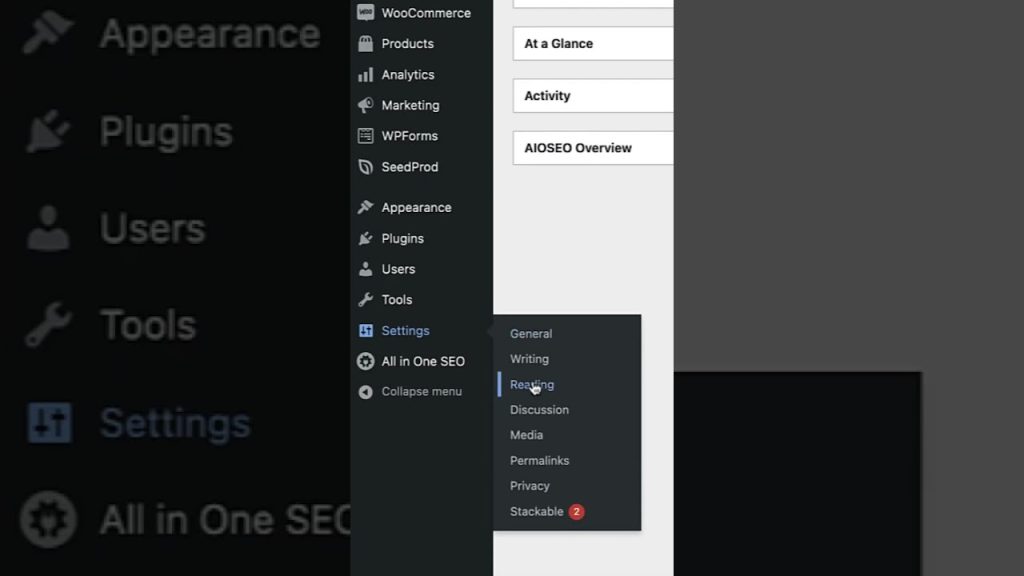
Once WordPress is installed, log in to your dashboard (usually at yourdomain.com/wp-admin). The first thing you’ll want to do is configure your settings. Go to Settings > General and set your site title, tagline, and timezone. These are pretty important for SEO. My friend swears by using a catchy tagline.
Next, go to Settings > Permalinks and choose a permalink structure. I recommend choosing “Post name” for SEO purposes. This makes your URLs more readable and search engine-friendly. Don’t skip this step!
Choosing and Installing a Theme for Your WordPress Setup
Your theme controls the look and feel of your website. There are thousands of free and premium themes available. To install a theme, go to Appearance > Themes > Add New. You can search for themes by keyword, feature, or popularity. I’ve been using the Astra theme for a couple of my sites, and I really like its flexibility and customization options. Take this with a grain of salt, though; theme choice is subjective.

When choosing a theme, consider its design, features, and responsiveness (how well it adapts to different screen sizes). Make sure it’s compatible with the latest version of WordPress and has good reviews. Also, don’t go overboard with features you don’t need; a bloated theme can slow down your website. No one wants that.
Installing Key Plugins for Your WordPress Website
Plugins add extra functionality to your WordPress website. There are plugins for everything from SEO to security to contact forms. To install a plugin, go to Plugins > Add New. Here are a few needed plugins I recommend:
- Yoast SEO: Helps you optimize your website for search engines.
- Akismet Anti-Spam: Protects your website from spam comments.
- Contact Form 7: Lets you create custom contact forms.
- UpdraftPlus: Backs up your website regularly.
According to a 2023 study by CodeinWP, the average WordPress website has around 28 plugins installed. However, it’s important to only install plugins you actually need, as too many plugins can slow down your website. I try to keep my plugin count under 20. A survey by WPBeginner found that 63% of WordPress users experience plugin conflicts.
Quick note: Always keep your themes and plugins updated to ensure security and compatibility.
What are the Key Takeaways for a Complete WordPress Setup?
- WordPress setup is easier than you think, especially with one-click installation.
- Choose a domain name and web hosting provider that meet your needs.
- Configure your WordPress settings, choose a theme, and install key plugins.
- Keep your themes and plugins updated for security and performance.
That’s it! You’ve now completed the basic WordPress setup. Now, go create some awesome content! You’ll be amazed at what you can do.
So, what are you waiting for? Start your WordPress journey today!